Home›Templates›Project Plan (Gantt Chart)
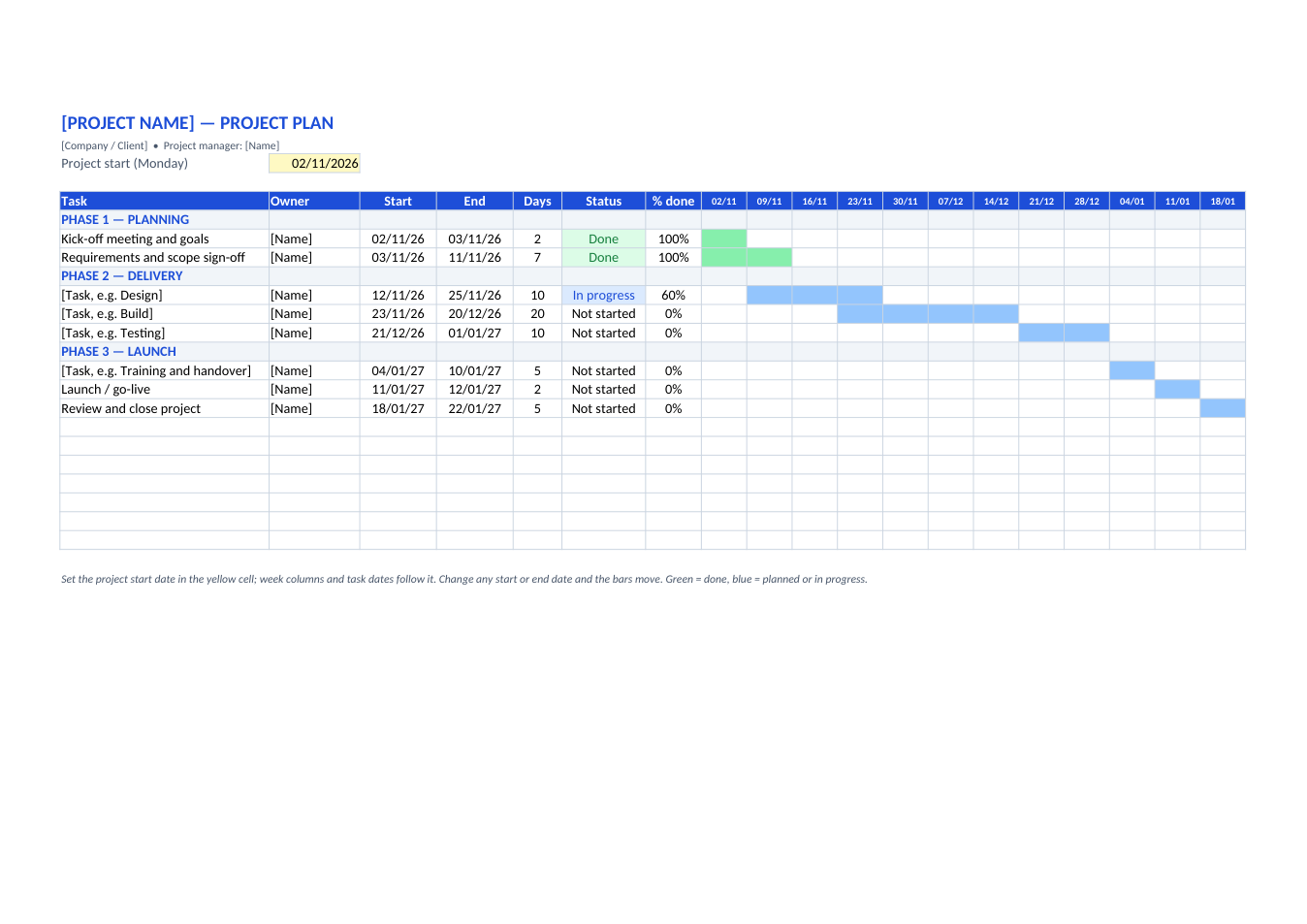
Preview of the Project Plan (Gantt Chart) template

Sample text in [brackets], replace with yours · Accounting & Small Business Spreadsheets

Free template

Project Plan Template with Gantt Chart (Excel & PDF)

Plan phases and tasks with owners, dates, status and % done, and see them on a 12-week Gantt chart.

✓ Landscape A4✓ 12-week Gantt✓ Status colours✓ Excel & PDF

Opens in your browser. No Excel needed, no signup.

Free for personal and commercial use · No watermark · Updated October 2026

Guide

About this project plan (gantt chart) template

Most small projects don't need project-management software, just a clear plan everyone can read. This sheet lists phases and tasks with an owner, start and end date, working days, status and % done. The Gantt chart on the right draws itself from the dates: blue bars for planned or in-progress work and green bars for finished tasks. Change the project start date and the whole plan moves with it.

How to build your project plan

  1. 1

    Click "Edit online" to open it in your browser, or download the Excel file.

  2. 2

    Set the project start date (a Monday) in the yellow cell.

  3. 3

    Rename the phases and tasks, and assign one owner to each task.

  4. 4

    Set each task's start and end date; the bars appear in the week columns.

  5. 5

    Update status and % done every week, and share the PDF with your team or client.

Tips for project planning

Break work down

Tasks of one to two weeks are easy to track. Split anything longer.

Plan backwards

Start from the launch date and work back to see when each task must start.

Add buffer

Leave 10–20% spare time before the deadline. Something always slips.

Review weekly

Mark tasks "Late" honestly in the weekly meeting; our meeting minutes template records the decisions.
Frequently Asked Questions

Yes. Download the Excel or PDF version, or edit it online for free, with no signup and no watermark.

Conditional formatting colours each week cell when the task's dates overlap that week. Blue means planned or in progress; green means the task is marked Done.

With NETWORKDAYS, which counts Monday to Friday between the start and end date. Add holidays to the formula if you need them excluded.

Yes. Copy the last week column to the right; the date and colouring follow automatically.

Tools that help

📗

Excel to PDF

Convert Excel spreadsheets to PDF with all sheets preserved

Use Tool→
📊

PDF to Excel

Extract tables from PDF into editable Excel spreadsheets

Use Tool→
🎂

Age Calculator

Calculate exact age in years, months, and days

Use Tool→
🔗

Merge PDF

Combine multiple PDF files into one document

Use Tool→

More accounting & small business spreadsheets

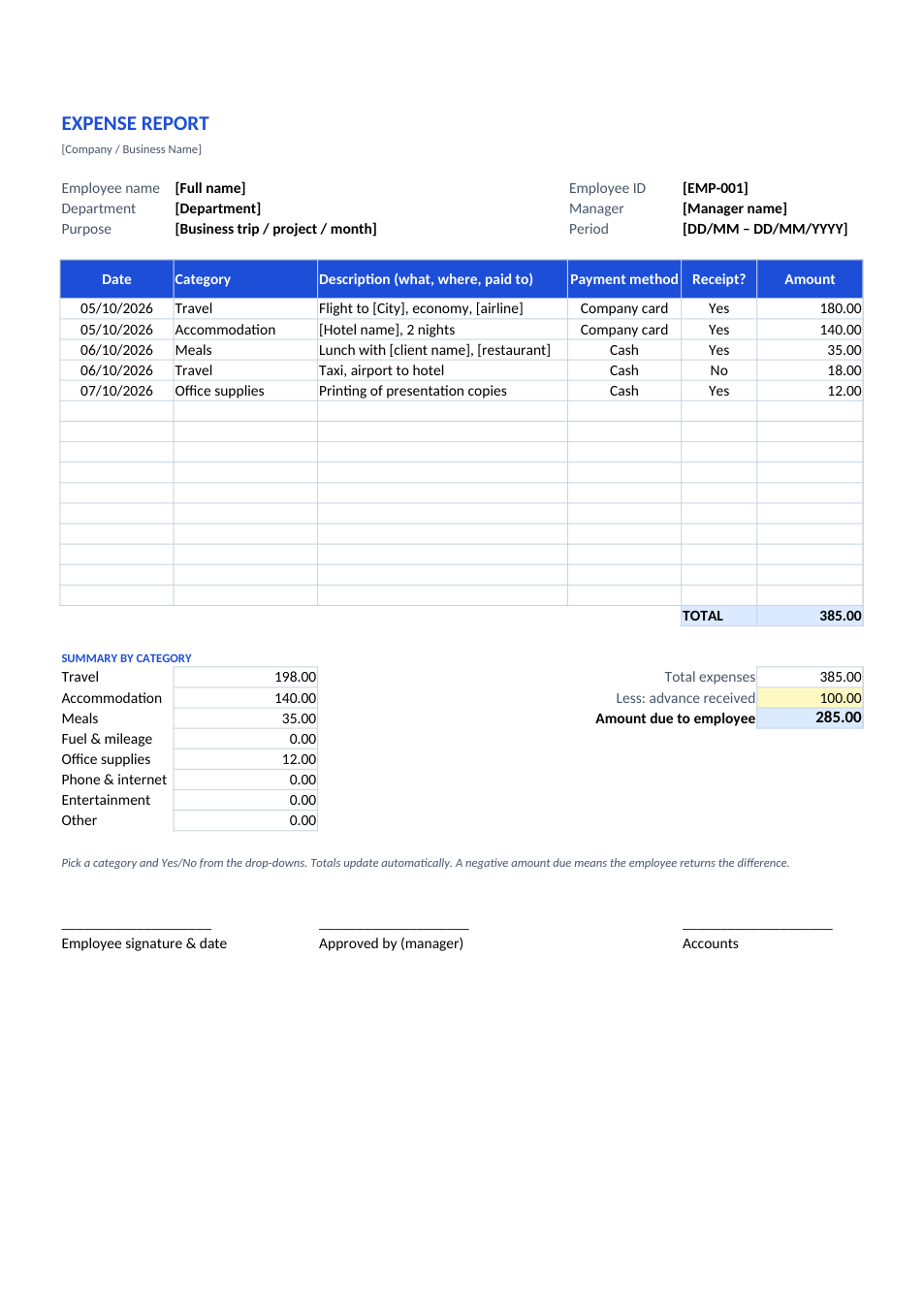
Expense Report template preview

Expense Report

Claim business expenses with category totals and advances.

ExcelPDF
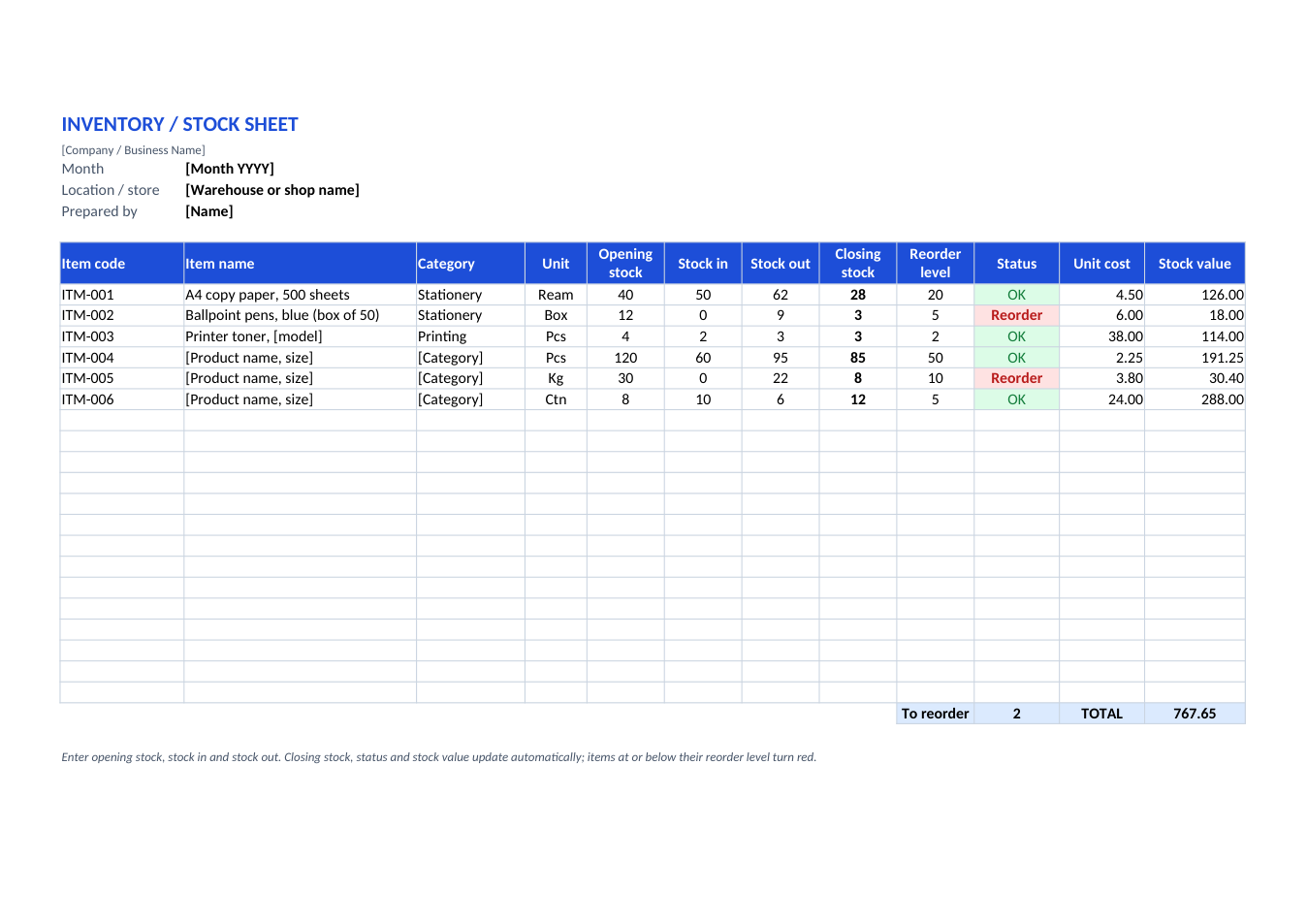
Inventory / Stock Sheet template preview

Inventory / Stock Sheet

Stock in, stock out, closing stock and reorder alerts.

ExcelPDF
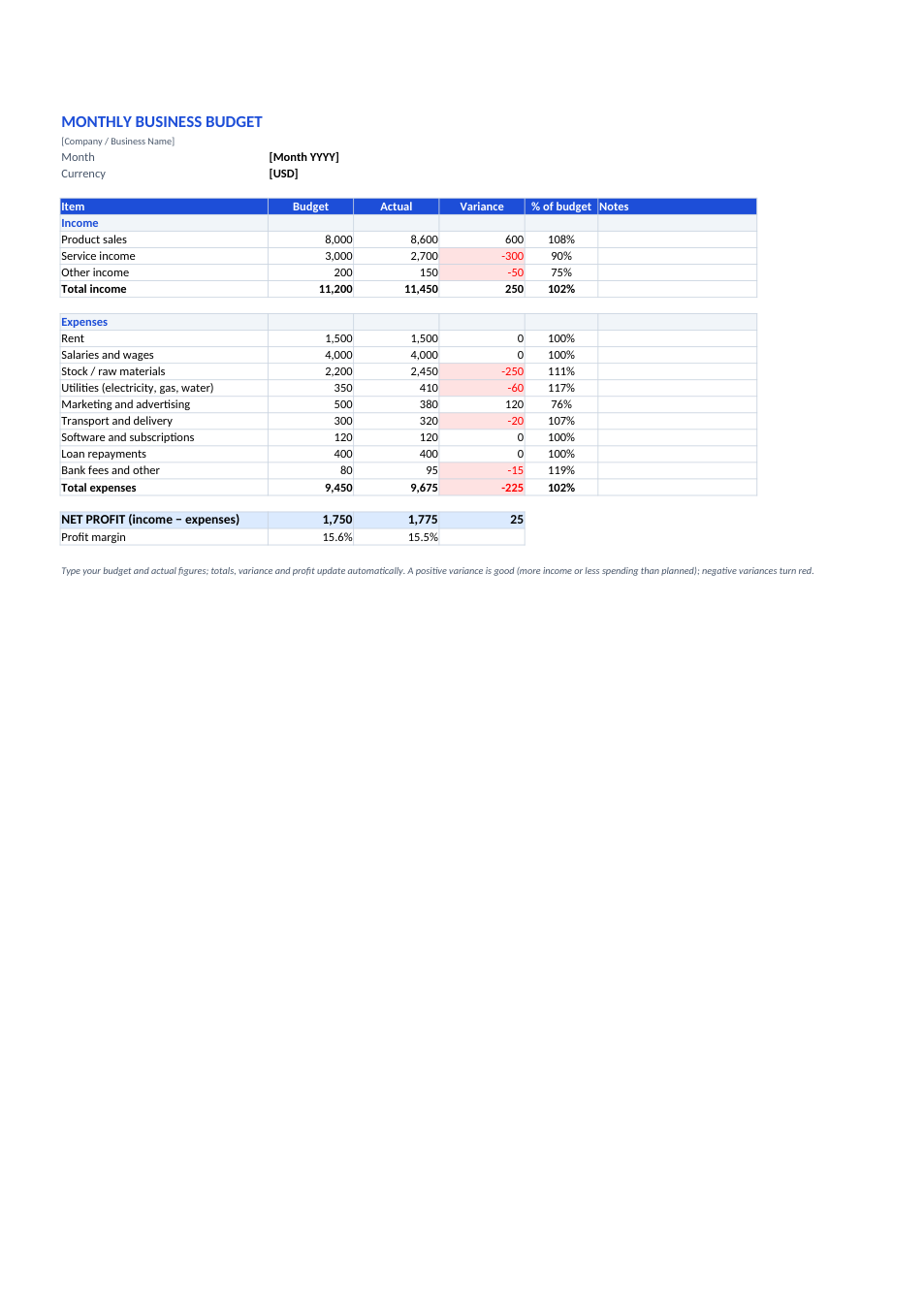
Monthly Business Budget template preview

Monthly Business Budget

Budget vs actual for income and expenses, with profit.

ExcelPDF
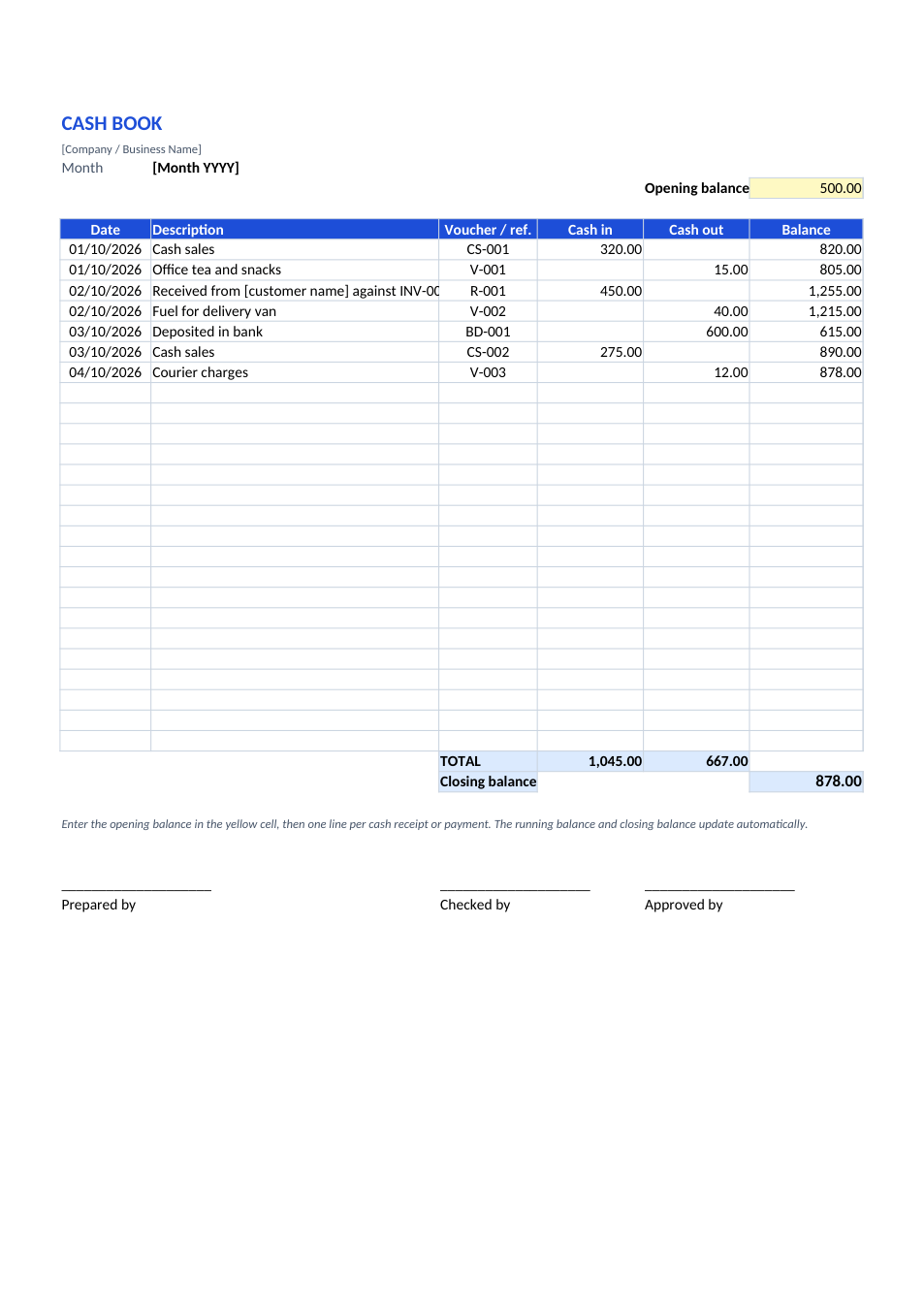
Cash Book template preview

Cash Book

Daily cash in and out with a running balance.

ExcelPDF
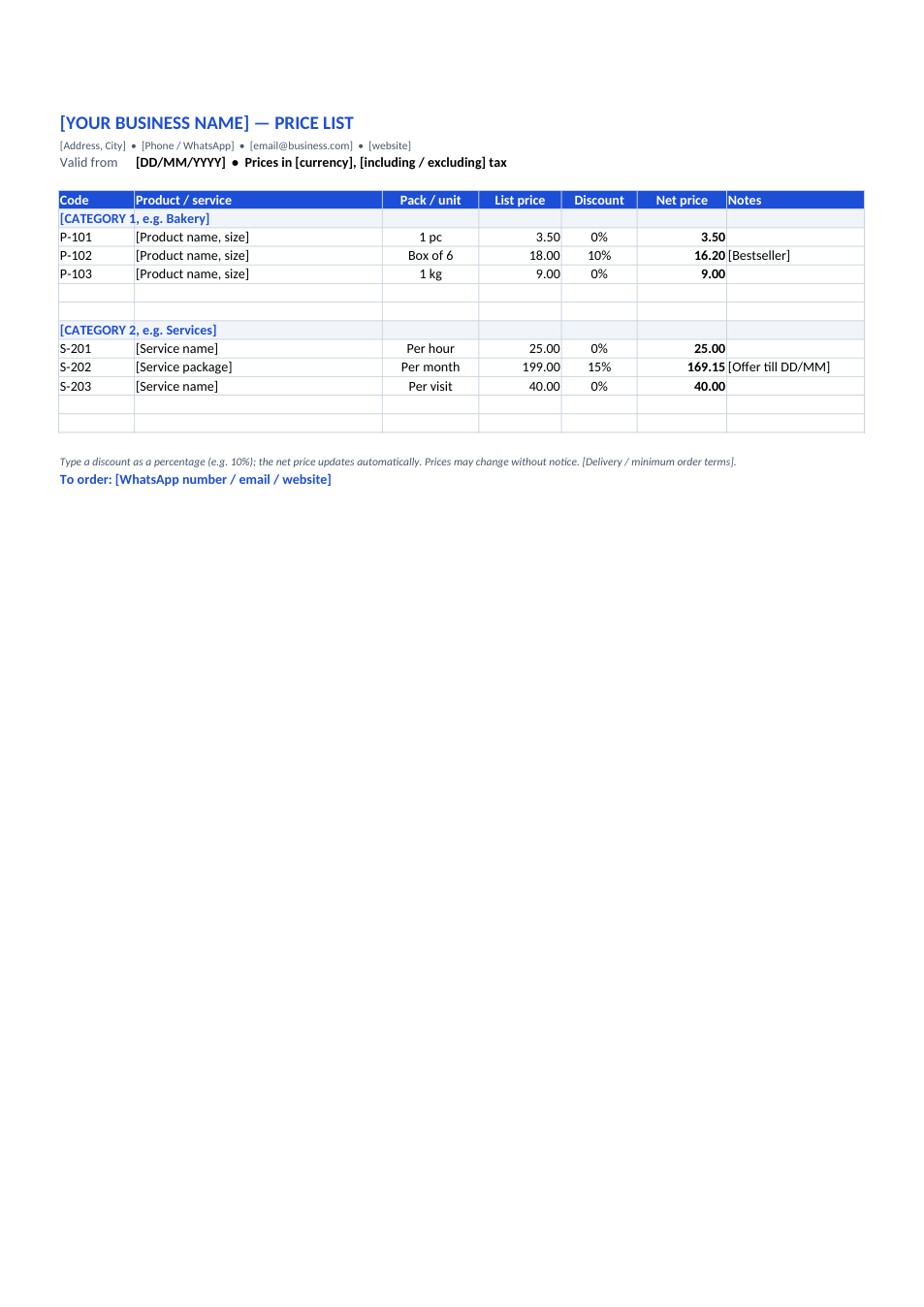
Price List template preview

Price List

Products and services by category, with discounts.

ExcelPDF
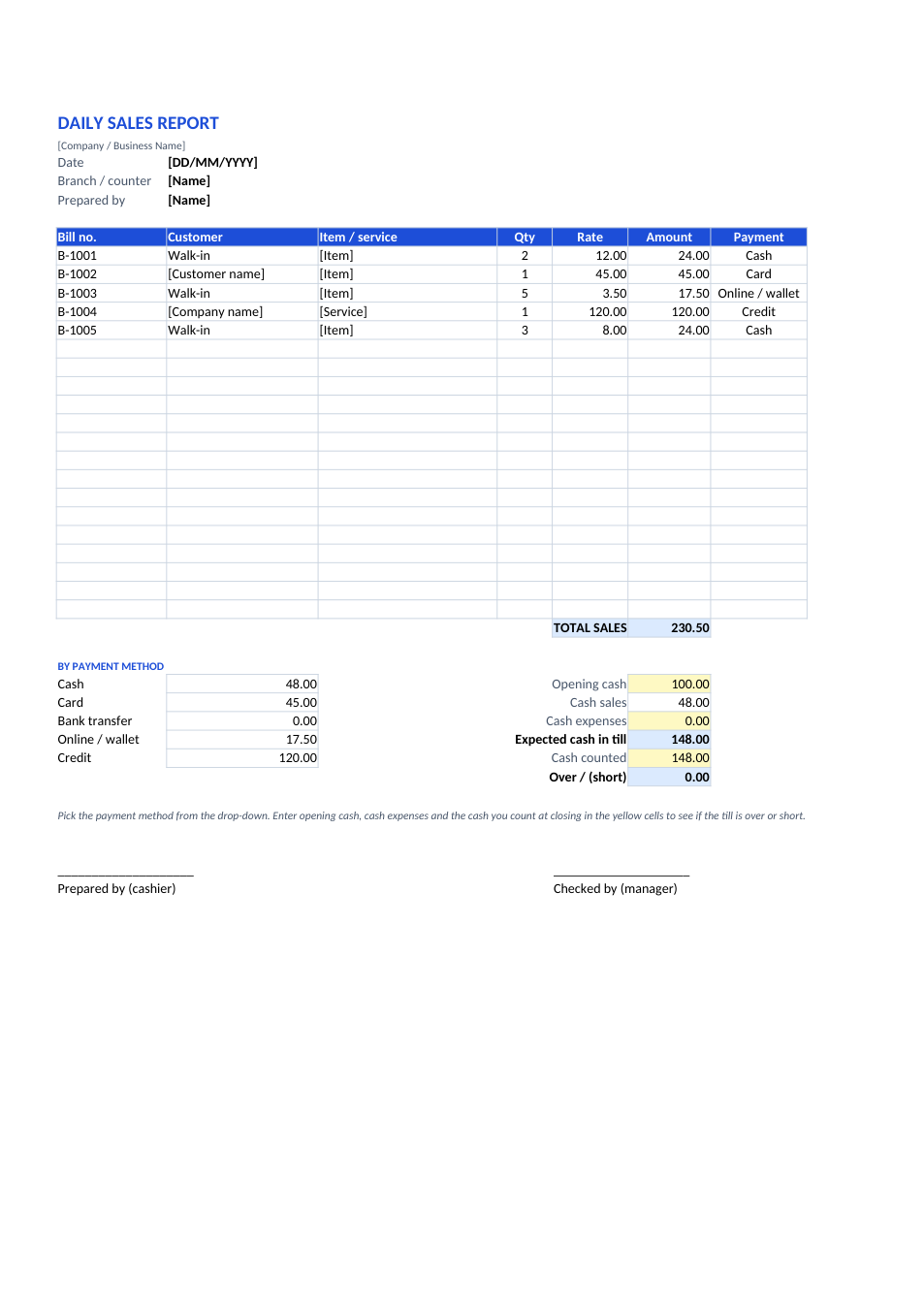
Daily Sales Report template preview

Daily Sales Report

Bills, payment methods and end-of-day cash check.

ExcelPDF
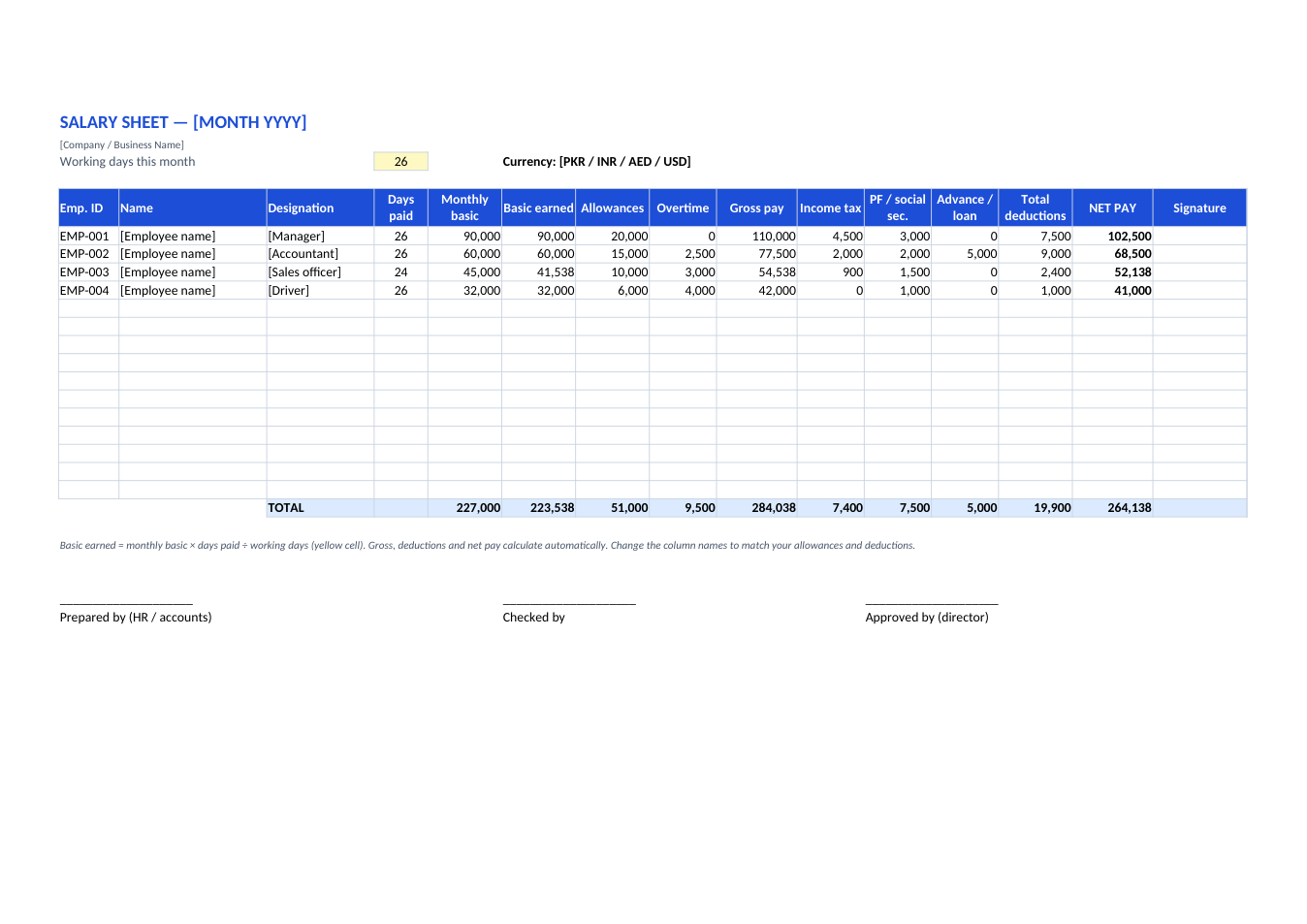
Salary Sheet (Payroll) template preview

Salary Sheet (Payroll)

Monthly payroll for all staff: gross, deductions, net pay.

ExcelPDF