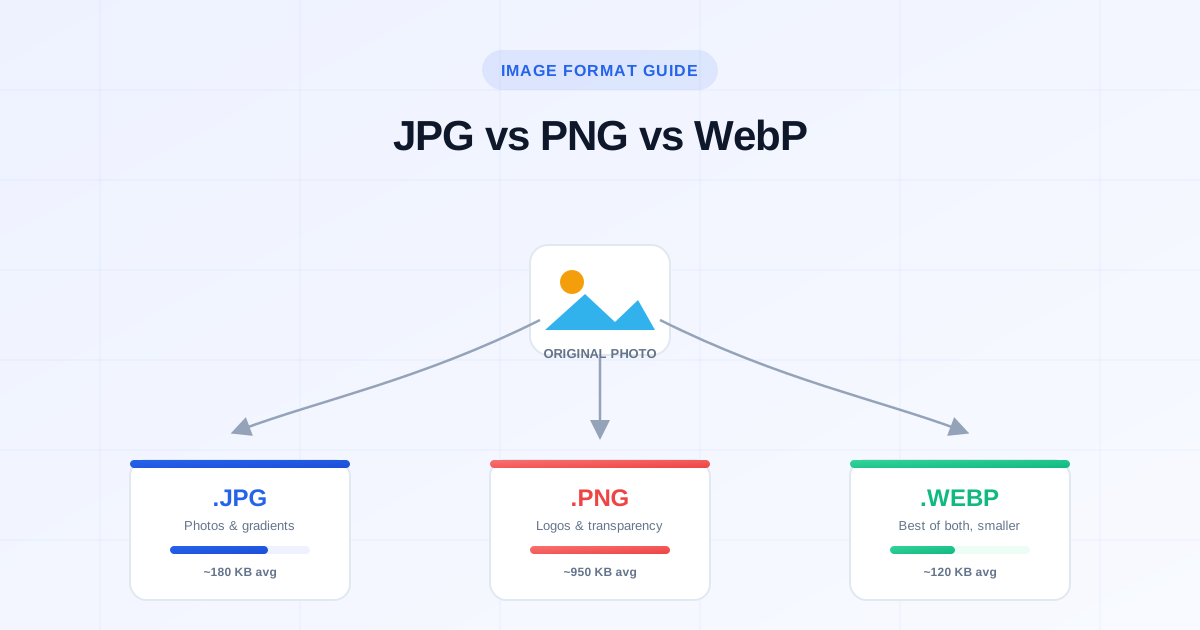
You've got an image to upload — a product photo, a logo, a screenshot for a blog post — and your editing tool asks you to pick a format. PNG? JPG? WebP? Most people just pick whatever the default is and move on. That's usually the wrong call, and it's costing you page speed, storage space, or image quality without you noticing.
Here's the difference in plain terms, backed by real numbers, so you can stop guessing.
The Quick Answer
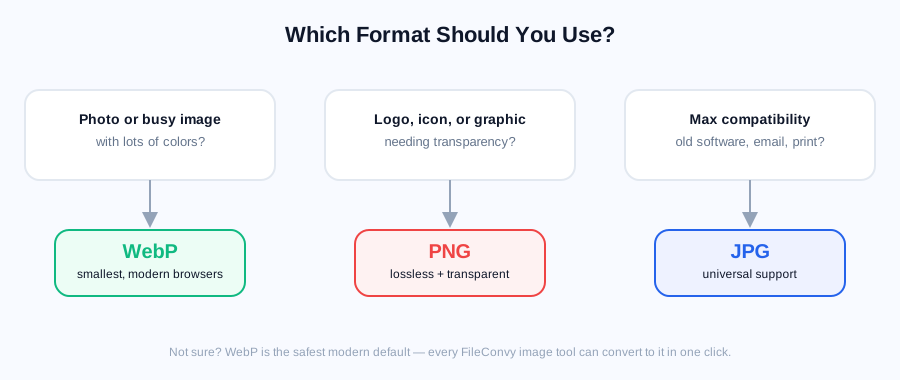
If you only remember one thing: use JPG for photos, PNG for anything that needs transparency or crisp text/logos, and WebP whenever you can — it beats both for web use.
| Format | Best for | Transparency | Typical size (same photo) |
|---|---|---|---|
| JPG | Photos, complex color gradients | No | ~180 KB |
| PNG | Logos, screenshots, icons, text | Yes | ~950 KB |
| WebP | Almost everything on the web | Yes | ~120 KB |
Why the File Size Gap Is So Big
PNG is a lossless format — it doesn't throw away any image data, which is exactly why logos and screenshots look pixel-perfect in PNG. But that same losslessness makes it a terrible choice for photographs, where millions of subtly different colors mean the file simply can't compress well.
JPG is lossy: it intentionally discards detail humans barely notice, which is why photos compress so much smaller. The tradeoff is that JPG doesn't support transparency and starts showing blocky artifacts if you compress too aggressively or re-save it repeatedly.
WebP, developed by Google, gets the best of both — lossy compression that rivals or beats JPG, plus optional lossless mode and transparency support like PNG, at a noticeably smaller file size than either.
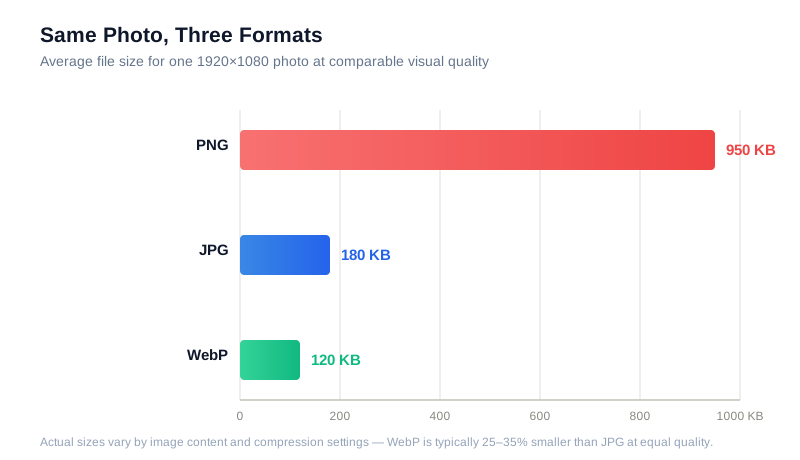
As the chart shows, saving a plain photograph as PNG instead of JPG can bloat the file 5x larger for zero visible quality benefit — the single most common image mistake we see people make.
JPG: The Universal Default
JPG (or JPEG) has been around since 1992 and is supported by literally every browser, editor, phone, and printer ever made. Use it when:
- You're saving a photo, screenshot with a photo, or anything with smooth color gradients
- You need the file to open anywhere, including old software
- You don't need transparency
Watch out for generation loss — every time you re-save a JPG, it recompresses and loses a little more quality. Keep an original copy and only export a fresh JPG when you need one. If a JPG is bigger than it should be, run it through Compress Image to shrink it without a visible quality hit.
PNG: When Pixels Must Stay Exact
PNG is the right call when:
- The image needs a transparent background (logos, icons, overlays)
- It's a screenshot, chart, or anything with sharp text and hard edges
- You're editing the image further and want to avoid compression artifacts stacking up
The catch is size. A PNG of a real photo can be 4–8x larger than the equivalent JPG or WebP for no visual gain, because PNG is compressing detail it was never designed to handle efficiently. If you've got a PNG that should really be a JPG, PNG to JPG converts it in one click. Need it the other way around for a transparent icon? JPG to PNG does that too.
WebP: The Modern Default
WebP quietly became supported in every major browser years ago (Chrome, Firefox, Safari, Edge all handle it fine now), and it beats both older formats on nearly every axis:
- 25–35% smaller than JPG at equivalent visual quality
- Supports transparency, like PNG, but far smaller
- Supports animation, like GIF, but with dramatically better compression
The only reason not to default to WebP is if you're supporting genuinely ancient software (some older PDF viewers or legacy design tools still choke on it) or need an image to work as an email attachment opened in very old mail clients. For everything else — websites, apps, modern documents — WebP wins. Convert any image with WebP Converter.
Which Format Should You Use? (Flowchart)
Format Comparison at a Glance
| JPG | PNG | WebP | |
|---|---|---|---|
| Compression | Lossy | Lossless | Lossy or lossless |
| Transparency | ❌ | ✅ | ✅ |
| Animation | ❌ | ❌ | ✅ |
| Browser support | Universal | Universal | Universal (modern) |
| Best for photos | ✅ | ❌ | ✅ |
| Best for logos/icons | ❌ | ✅ | ✅ |
| Repeated re-saving | Degrades | No loss | No loss (lossless mode) |
Quick FAQ
Does converting JPG to PNG improve quality? No. JPG has already discarded detail during its original compression — converting to PNG afterward just locks in that same quality at a much bigger file size. It cannot restore what was lost.
Is WebP actually safe to use everywhere in 2026? Yes, for websites and apps. Every major browser has supported it since 2020–2021. The only edge cases are older desktop software and some print workflows, which is why it's smart to keep an original JPG or PNG as a fallback for those specific use cases.
Which format should I use for a logo with a transparent background? PNG or WebP — both support transparency. WebP will give you a smaller file at the same quality, but PNG remains the safer choice if the logo needs to work in tools that don't recognize WebP yet.
My photo looks blurry after I compressed it — what happened? You likely compressed a JPG too aggressively, or re-saved it multiple times. Start from the original image if you still have it, and use a tool that lets you control the quality level, like Compress Image, instead of guessing.
Convert Between Formats Free
No installs, no signup — just upload and download:
- JPG to PNG — add transparency support
- PNG to JPG — shrink oversized screenshots and photos
- WebP Converter — convert to and from WebP
- Compress Image — shrink any image without losing visible quality
- Resize Image — fit images to exact dimensions
- Remove Background — strip backgrounds to transparent PNG or WebP